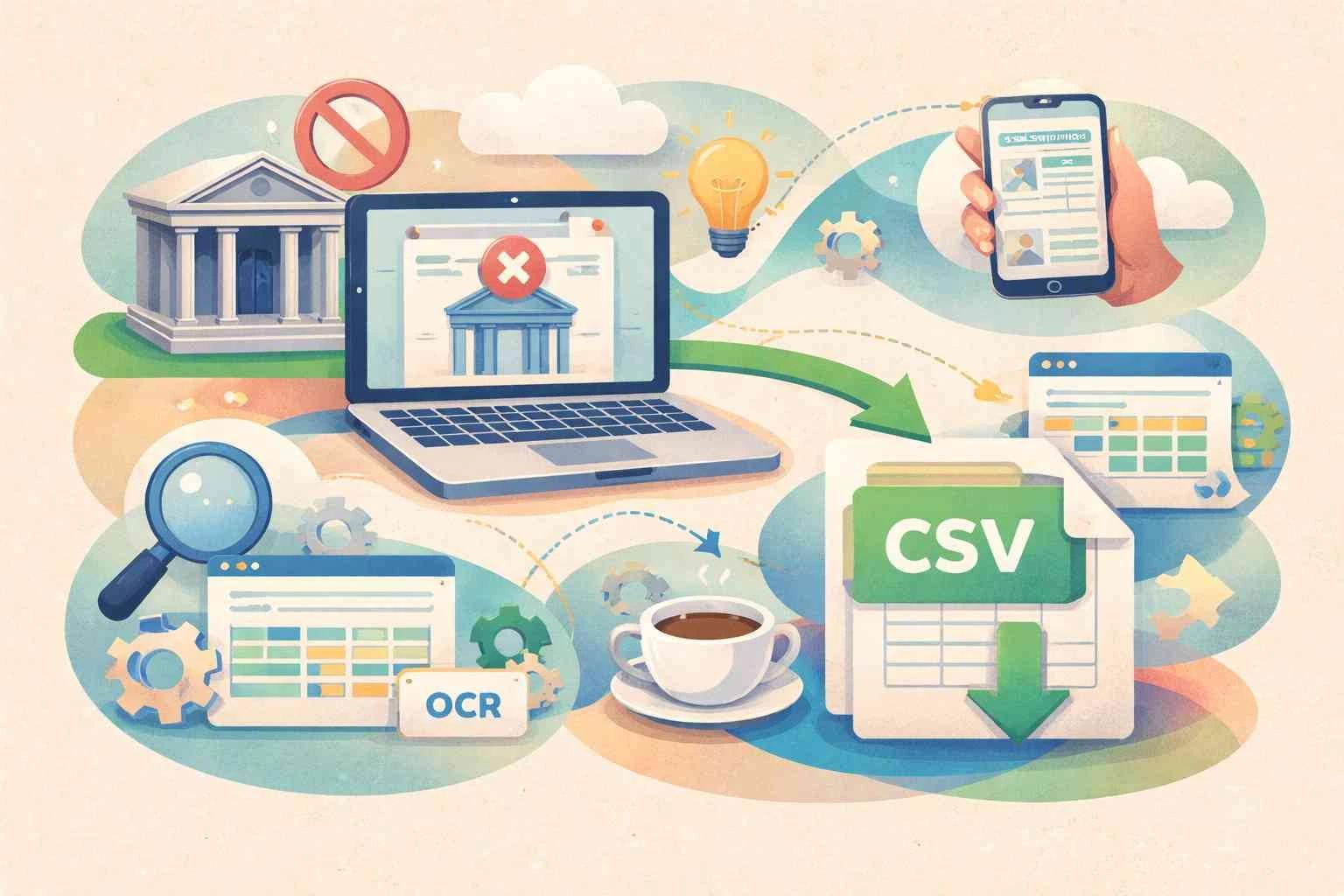
If you've ever tried to open a bank statement PDF directly in Excel, you already know the frustration. You drag the file in, Excel grinds for a moment, and what comes out is either a wall of unreadable characters, a single column of jumbled text, or a completely broken layout that looks nothing like your original statement. Yet somehow, the belief persists — that Excel is capable of handling bank statement PDFs if you just know the right trick.
This post is here to bust that myth, explain why Excel can't open bank statement PDFs properly, and show you what actually works.
Why People Think Excel Can Open Bank Statement PDFs
The assumption is understandable. Excel is the dominant tool for financial data. It handles CSVs, it imports XML, it connects to live databases. Surely it can open a PDF, right?
Well — sort of. Excel does have a "Get Data from PDF" feature (available in Excel 365 and Excel 2019+). And it works sometimes. But "sometimes" is doing a lot of heavy lifting in that sentence.
The real-world result when Excel tries to read a bank statement PDF is almost always one of three things:
- Scrambled columns — dates, descriptions, debits, and credits get merged into nonsensical rows.
- Missing transactions — rows simply don't appear because Excel couldn't parse the spacing or layout.
- Broken formatting — multi-page statements that lose their structure after page one, or merged cells that explode the data model.
The myth that Excel can handle this reliably has cost finance professionals, accountants, bookkeepers, and small business owners enormous amounts of time.
What's Actually Happening When Excel Tries to Read a Bank Statement PDF
To understand why Excel can't open bank statement PDFs properly, you need to understand what a PDF actually is.
A PDF is not a spreadsheet. It's not even a structured document in the way most people imagine. A PDF is a visual rendering engine — it tells a printer (or your screen) exactly where to draw each character, at what position, in what font. There's no inherent concept of "rows" or "columns." There's just text at coordinates.
When Excel attempts to read a PDF, it's essentially trying to reverse-engineer a visual layout into structured data. And this is where everything breaks down:
Problem 1 — Text-based PDFs vs. Scanned PDFs. Some bank statements are text-based (the text is actually encoded in the PDF file). Others are scanned images — your bank printed a statement, scanned it, and saved the scan as a PDF. Excel cannot read scanned PDFs at all. It sees an image, not data.
Problem 2 — Inconsistent column spacing. Bank statement layouts vary wildly between institutions. Chase formats their statements differently from HSBC, which looks nothing like Wells Fargo. Excel's generic PDF parser has no idea which block of text is a "Description" vs. a "Balance" when the layout isn't perfectly uniform.
Problem 3 — Multi-page complexity. Headers repeat. Running balances continue. Page numbers interrupt data rows. Excel's importer treats each page independently, which means it often duplicates headers as data rows or loses context between pages.
Problem 4 — Special characters and currencies. Foreign currencies, symbols, and special formatting often fail to parse correctly, producing encoding errors or blank cells.
The result? Even in the best-case scenario — a clean, text-based, single-bank-format PDF — Excel's output requires significant manual cleanup before it's usable. And in the worst case (scanned statements, multi-currency, complex layouts), it simply doesn't work at all.
The Hidden Cost of Doing This Manually
Let's put this in real numbers. If you process just five bank statements per month and each one takes you 2–3 hours to manually clean up after an Excel import attempt, that's 10–15 hours of your time gone. At even a modest billing rate of $50/hour, you're losing $500–$750 monthly on a problem that shouldn't exist.
For accountants, bookkeepers, and CPAs handling dozens of client statements, the math gets catastrophic fast. This is time you're not spending on analysis, client communication, or growing your practice.
And errors compound the problem. Manual cleanup introduces mistakes — a transposed digit, a missed transaction, a misassigned category. These aren't just inconveniences; in financial contexts they can cascade into reconciliation failures, incorrect tax filings, and compliance issues.
What Actually Works: AI-Powered Bank Statement Conversion
The solution isn't a workaround or a smarter use of Excel. The solution is purpose-built technology designed specifically for this problem.
AI Bank Statement is built from the ground up to do one thing exceptionally well: convert bank statement PDFs into clean, structured Excel, CSV, or JSON files — accurately, in seconds, with no manual cleanup required.
Here's what makes it fundamentally different from trying to use Excel:
OCR Technology for Scanned Statements
This is the feature that solves the problem Excel can't even touch. AI Bank Statement uses advanced Optical Character Recognition (OCR) to read scanned PDF bank statements — the kind that are literally images, not text. OCR technology recognizes characters in images, extracts them, and reconstructs the data into proper rows and columns. If your bank sends you scanned statements, or if you've been given older statements that were physically scanned in, OCR is the only way to extract that data without retyping every transaction by hand.
AI-Powered Layout Recognition
Unlike Excel's generic PDF parser, AI Bank Statement uses machine learning models trained specifically on bank statement layouts. The system understands that a column of numbers on the right side of a statement is likely a balance, that dates appear in specific formats, and that transaction descriptions can span multiple visual lines while still representing a single transaction row. This contextual understanding is what delivers 95%+ accuracy across 3,000+ banks globally.
Batch Processing for High-Volume Work
One of the biggest pain points for accounting professionals is the sheer volume. AI Bank Statement's batch processing feature lets you upload 20+ statements simultaneously, configure each one individually (OCR vs. text-based, Excel vs. CSV vs. JSON output), and download everything as a single organized ZIP archive. What used to take an entire workday takes minutes.
Output Formats Ready for Immediate Use
The output isn't raw extracted text that still needs formatting. It's a properly structured Excel (.xlsx) or CSV file with clean column headers, correct date formatting, and organized transaction data — ready to import directly into QuickBooks, Xero, or any accounting software without additional cleanup.
Text-Based vs. OCR: Choosing the Right Processing Mode
When you upload a statement to AI Bank Statement, you can select between two processing modes — and understanding the difference matters.
Text-Based Processing is used when your PDF contains actual encoded text (you can select and copy text from it). This is faster and ideal for digitally generated bank statements.
OCR Processing is used for scanned statements or image-based PDFs where text cannot be selected. The OCR engine analyzes the visual content, recognizes characters, and reconstructs the data structure. This takes slightly longer but is the only viable option for scanned documents — and it's the feature that makes Excel's approach entirely irrelevant for this document type.
A Quick Comparison: Excel vs. AI Bank Statement
| Factor | Excel PDF Import | AI Bank Statement |
|---|---|---|
| Text-based PDFs | Partially works, needs cleanup | Full accuracy, instant output |
| Scanned/OCR PDFs | Does not work | Fully supported |
| Multi-page statements | Often breaks structure | Handled automatically |
| Processing time | Hours of manual work | Under 30 seconds |
| Accuracy | 70–80% before manual fix | 95%+ out of the box |
| Output format | Messy, unstructured | Import-ready CSV/Excel/JSON |
| Batch processing | Not supported | 20+ files simultaneously |
Who This Actually Affects
The Excel-can't-open-bank-statement-PDF problem touches more people than most realize:
Accountants and bookkeepers processing client statements every month — this is your biggest time drain, and AI Bank Statement eliminates it.
Tax preparers and CPAs who need to analyze client transaction histories quickly during filing season — batch processing plus 30-second turnaround transforms the workflow.
Loan officers and underwriters verifying applicant financial histories — clean, structured output means faster decisions.
Small business owners tracking cash flow — no more copying transactions one by one into a spreadsheet.
Visa and immigration applicants preparing proof-of-funds documentation — convert statements from any bank, in any language, in any format.
Start Converting With a Paid Plan
AI Bank Statement offers paid plans with monthly page credits so you can convert bank statements into clean Excel, CSV, or JSON files without manual cleanup.
If you've been wrestling with Excel's PDF import feature, spending hours manually cleaning data, or paying someone else to do data entry, the math on switching is obvious within minutes of your first conversion.
Choose an AI Bank Statement plan →
Frequently Asked Questions
Q1. Why does Excel mess up bank statement PDFs even when I use the "Get Data from PDF" feature?
Excel's PDF importer is a general-purpose tool — it wasn't designed specifically for financial documents. Bank statements use complex, institution-specific layouts with varying column positions, running totals, and multi-line transaction descriptions. Excel can't reliably interpret these layouts, which is why columns get scrambled, rows go missing, and headers often appear as data. The "Get Data from PDF" feature works reasonably well for simple tables but consistently fails on real-world bank statement formats.
Q2. Can Excel open scanned bank statement PDFs at all?
No. If your bank statement is a scanned image saved as a PDF (common with older statements or physical documents that were scanned in), Excel cannot read it. Excel's PDF import only works with text-encoded PDFs where the characters are actually stored in the file. For scanned statements, you need an OCR-based solution like AI Bank Statement, which uses Optical Character Recognition to extract data from image-based documents.
Q3. What's the difference between OCR and text-based PDF conversion?
Text-based PDFs contain actual digital text that software can read directly — if you can open the PDF and highlight/copy text, it's text-based. Scanned PDFs are images of documents where text needs to be recognized visually through OCR (Optical Character Recognition) technology. AI Bank Statement supports both modes and lets you choose the appropriate processing type for each file you upload, ensuring accurate extraction regardless of how your statement was generated.
Q4. Is it safe to upload bank statements to an online converter?
Security is the right concern to have. AI Bank Statement uses bank-grade encryption during processing and automatically deletes all uploaded files immediately after conversion is complete. Files are never stored, accessed by staff, or retained on servers. The platform processes over 50,000 statements and is trusted by 10,000+ finance professionals worldwide. You can review the full privacy policy at aibankstatement.com/privacy.
Q5. Which banks are supported by AI Bank Statement?
AI Bank Statement supports statements from 3,000+ banks and financial institutions globally, including Chase, Bank of America, Wells Fargo, HSBC, Barclays, and hundreds more across multiple countries and languages. Because the AI is trained on diverse statement formats rather than hardcoded templates, it automatically adapts to new layouts without requiring manual configuration — so even if your specific bank isn't listed, the system is very likely to handle it accurately.
Ready to stop fighting Excel and start converting in seconds? Choose an AI Bank Statement plan.